Quick Start with Records
Introduction
Records are collections of files describing similar scenarios, used for storing, managing, and visualizing data. A record can store data generated during a device failure, data produced during a device task execution, or a small segment of a dataset pending annotation, such as ROS Bags, logs, maps, configuration files, images, and videos.
Getting Started with Records
Create a Record and Upload Files
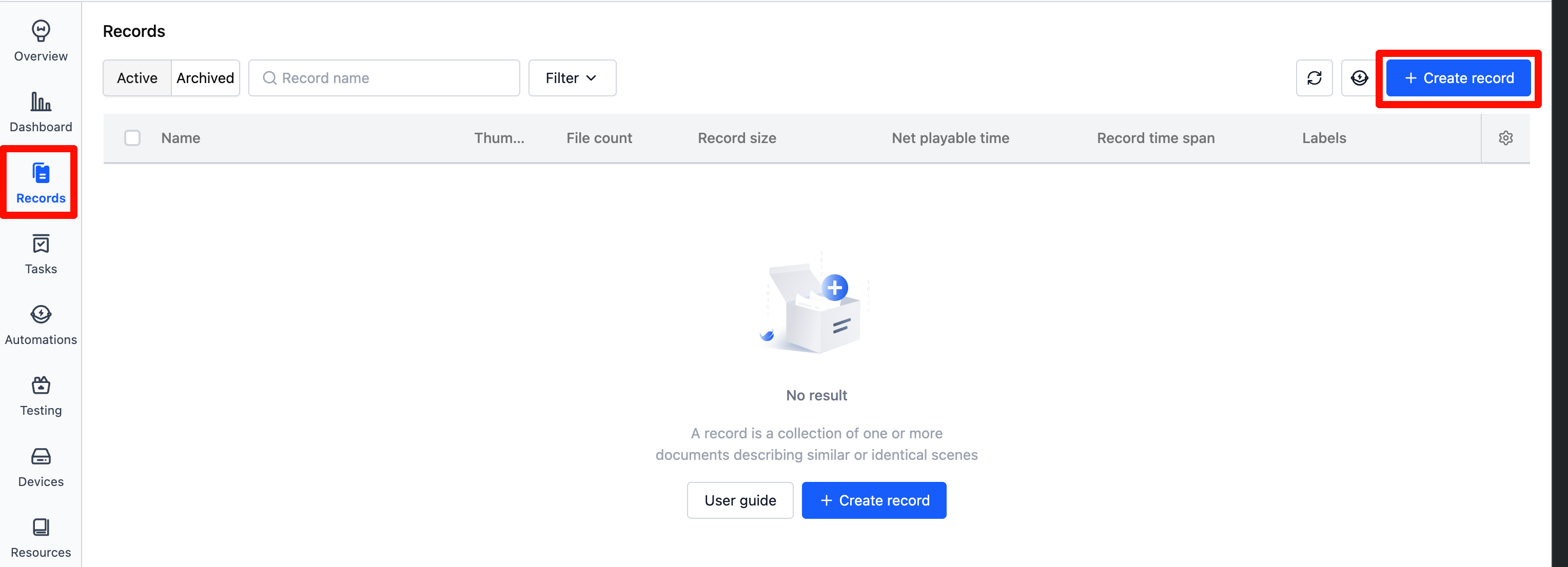
- Enter the project, select "Records" from the left sidebar, and click the [Create Record] button.
- Enter the record name and related information in the popup window, then click [Create].
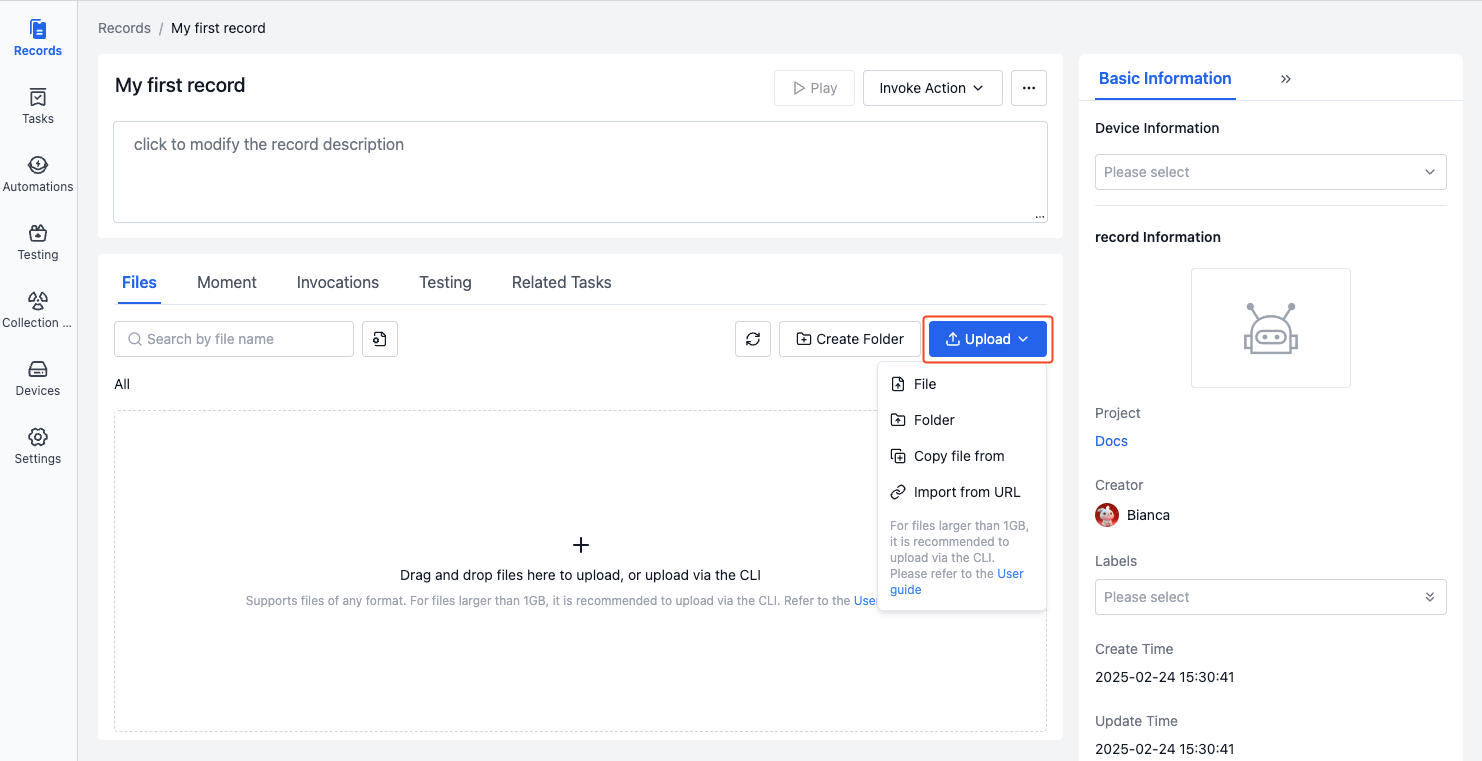
- After creation, you'll automatically enter the record details page. Click the [Upload] button to upload bag/mcap files, or click Download Sample File to download and upload.
Play Records
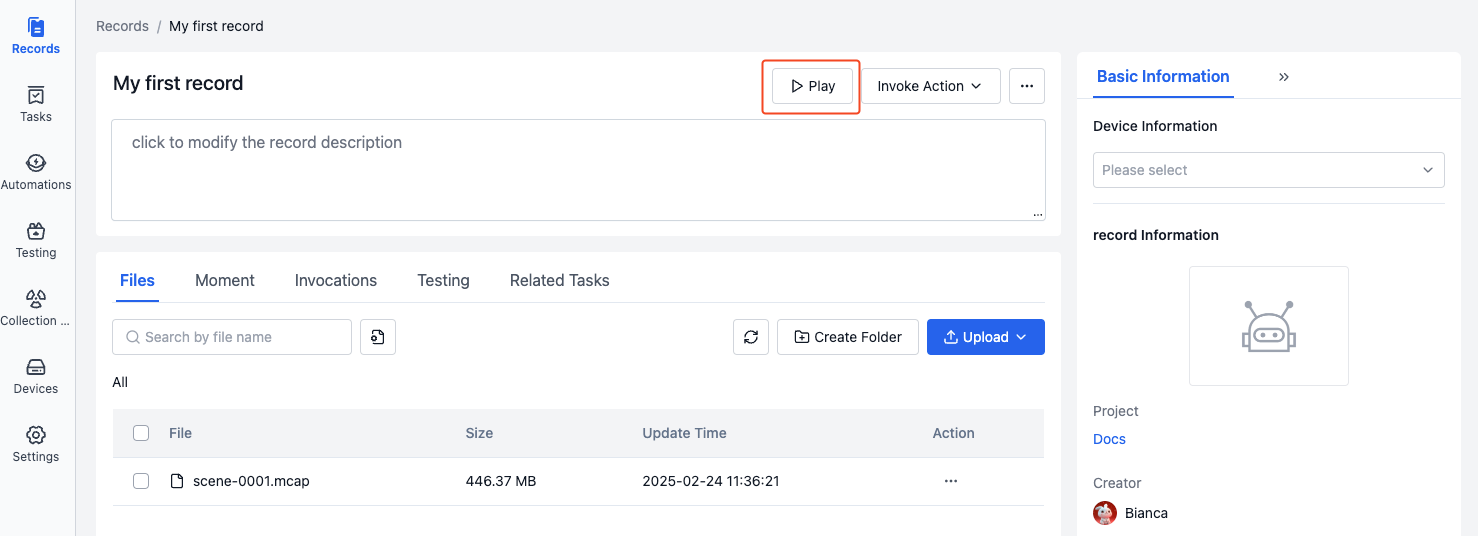
- After uploading a bag/mcap file to the record, click [Play Record] to enter the visualization page.
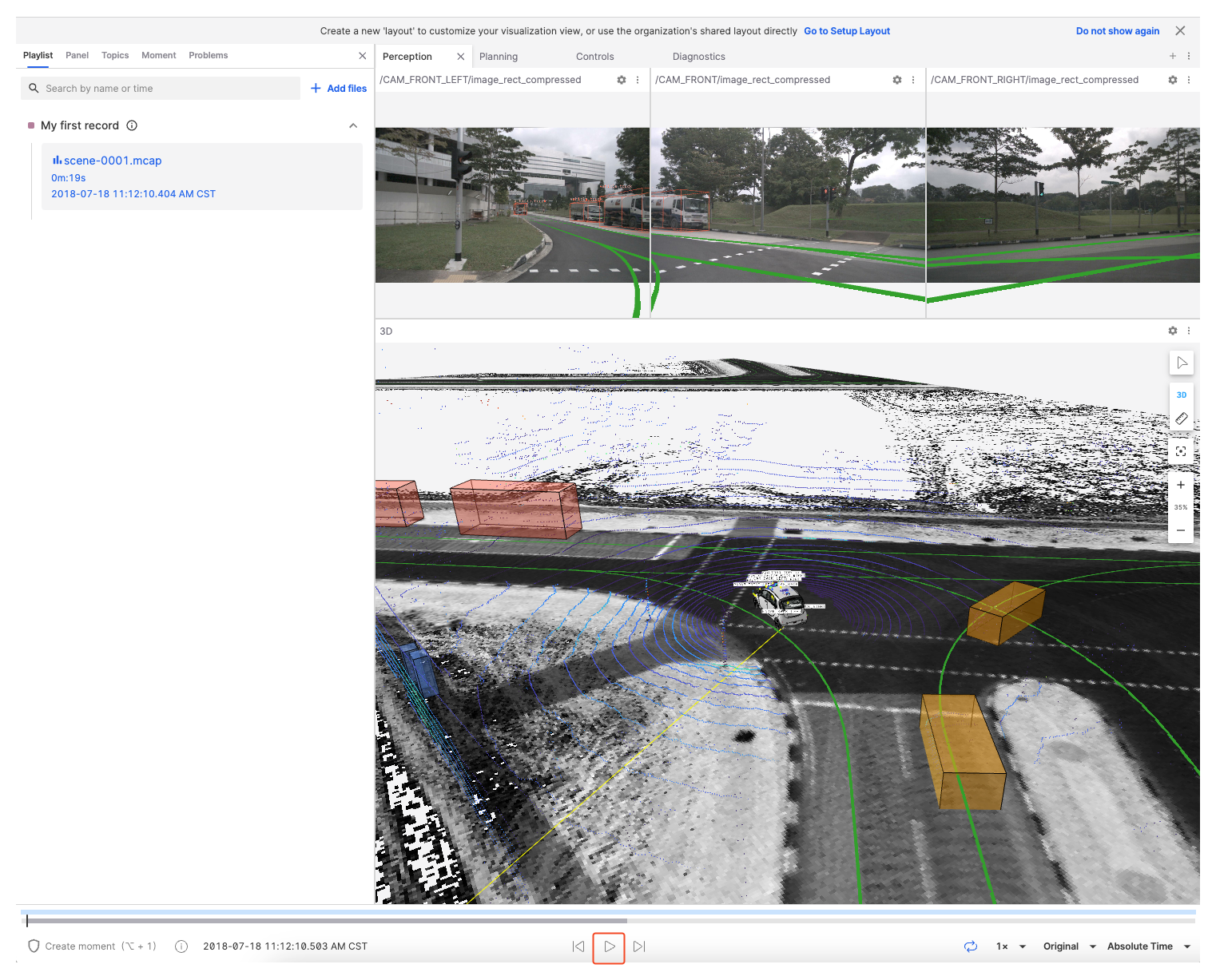
- In the layout panel of the visualization page, select [Import from File] to import the Sample Layout.

- Click the [Play] button at the bottom to visualize the data. For more operations, see Data Visualization.
Edit Records
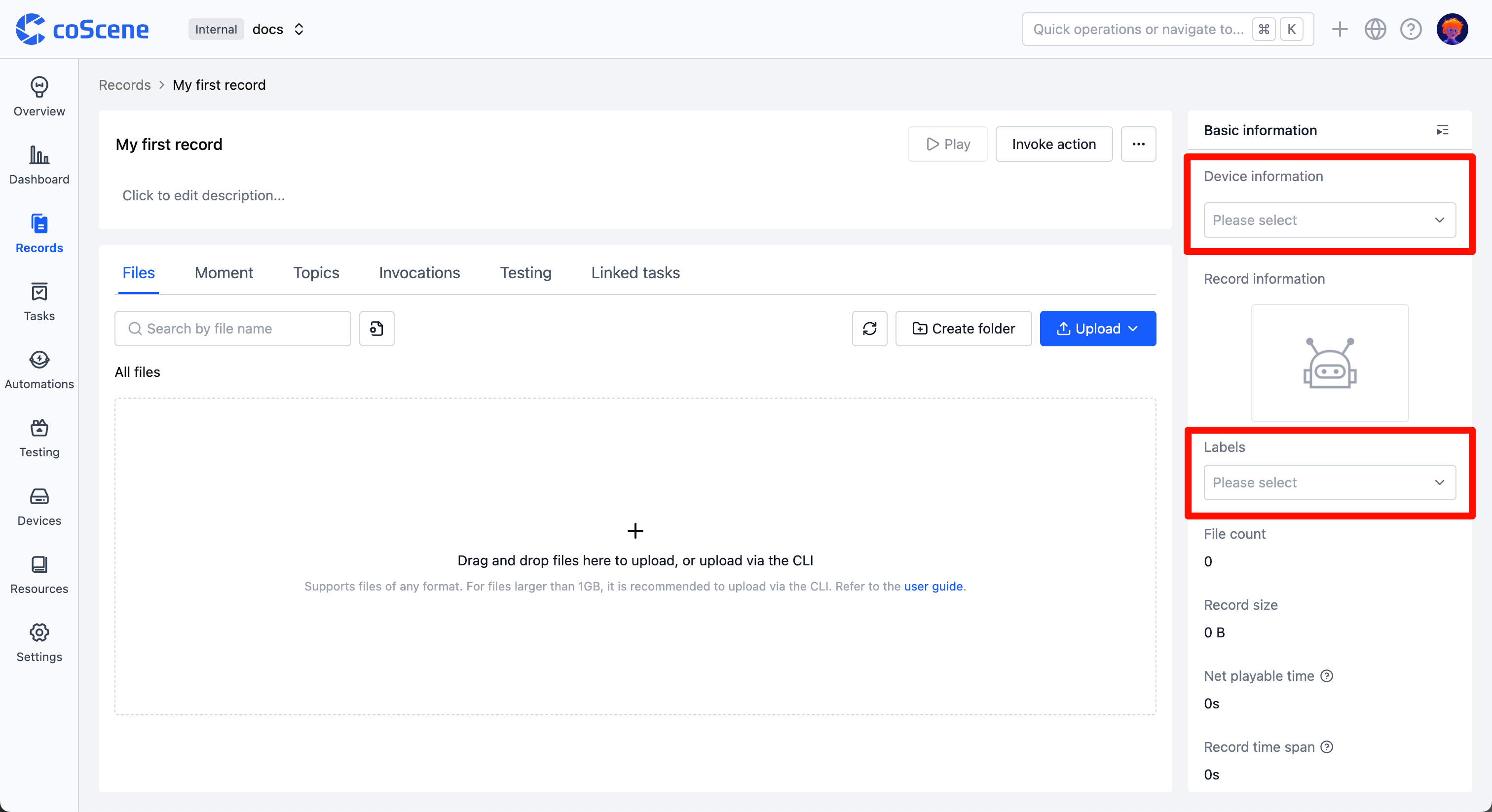
On the record details page, you can edit record information such as name, description, device, and labels.
- Click to directly edit the record name and description.

- In the record basic information section, you can select devices and labels.
- Device: Select the project device associated with the record
- Labels: Add, edit, or delete labels
Manage Records
In the [More] operations of the record, you can perform the following actions:
- Copy Record: Copy the record to the current project or other projects
- Move Record: Move the record to other projects
- Archive Record: Archive the record, no longer used as common data
- Delete Record

For more operations, see the subsequent documentation.