Test Suite
Introduction
A test suite is a collection of related test cases that provides a unified configuration management interface. It supports setting test names, runtime environments (images), test data (records), and other parameters to achieve standardized management of test cases.

Managing Test Suites
Prerequisites
-
Ensure that test data has been stored as records and each record has been labeled

-
Ensure that the test environment (image) is ready and has been pushed to a public platform or coScene Image Registry. It is recommended to define test cases in the image:
- Test cases support parsing, see Defining Test Results
- Input and output directories for batch testing, see System Directories
Creating Test Suites
- In the project's left sidebar, select "Testing" and click to enter the "Test Suite Management" page:
-
First time editing test suite

-
Subsequent editing of test suite

-
Click [Edit] to enter the test suite editing page:


-
Fill in the test suite name, runtime environment, test data, and other information:
# Example file# Version number, currently supported version is "1"version: '1'# Test name is workflow namename: 'workflow name'# A job consists of one or more test suites that can be tested in paralleljobs:# First test suite named "test-1"- name: 'test-1'# Test type is "generic"type: 'generic'# Image addressimages:# Enter image address according to test typebase: /coscene-hello/position:v1.0.0# Associated recordsrecords:# This test suite's associated record label is "sample"labels:- 'sample'# Run commands for this test suiteparameters:script:- /bin/sh- -c- 'echo hello'# Message notification template for test suite "test-1"notifications:# Notify to DingTalk group- dingTalkBot:# Second test suite named "test-2"- name: 'test-2'# Control when to automatically trigger this teston:# Trigger when uploading test bundle that meets the following conditionsbundlePush:# Condition: test bundle category is "test"category:- test- version: Version number, currently supported version is
'1' - name: Test name
- jobs: List of test suites
- name: Test suite name
- type: Test type, currently supported type is
'generic' - images: Images for running test suite, supports using coScene Image Registry or public platform images
- records: Records used when running this test suite, associated through labels
- parameters: Parameters used when running this test suite
- notifications: Message notification template sent after test suite completion
- on: Automatic test triggering
- bundlePush: Triggers when uploading test bundle whose "category" meets conditions
For specific format details, see Configuration Yaml Sample.
- version: Version number, currently supported version is
-
Click [Save] to save the test suite configuration file.

Upload, Download, and Edit
The test suite configuration file is cos.yaml, supporting direct upload, download, and editing.
-
In the project's left sidebar, select "Testing" and click to enter the "Test Suite Management" page:
-
Upload, download, or directly edit the configuration file:

-
Click [Save] to save the test suite configuration file.
View
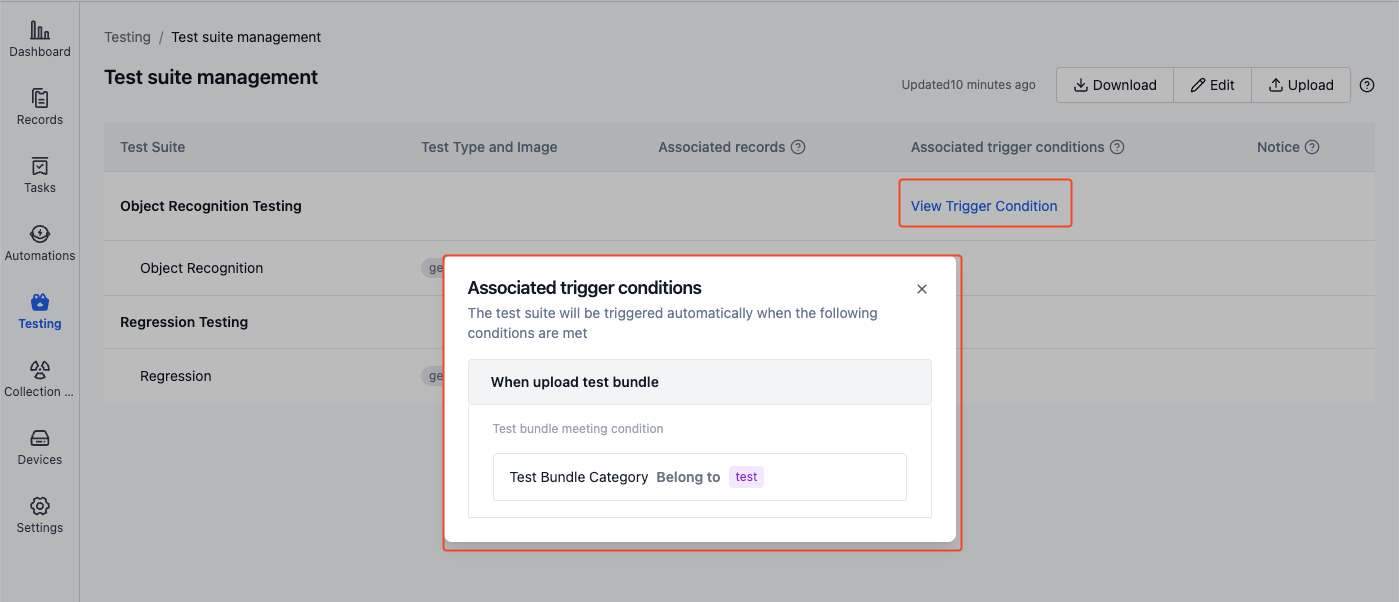
After configuration file validation passes, the test suite management page will display the parsing results, including basic information, runtime environment, data associations, and trigger conditions of the test suite.
-
Test name and test suite name

-
Test type and image

-
Associated records

-
Associated trigger conditions
Usage
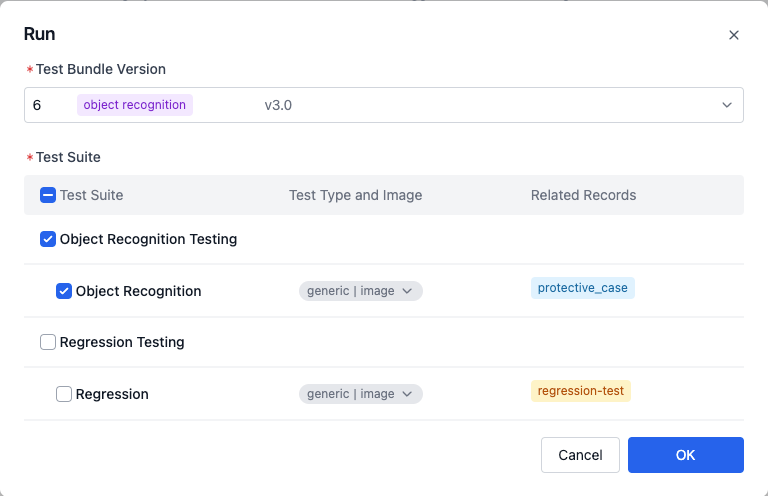
When running batch tests, you can select a test suite, and the system will run tests according to the test suite configuration information.
Learn More
FAQ
-
Q: Cannot save test suite, error message "Record error: Label does not exist: sample"
A: Please check if the test suite named "sample" has incorrect labels, such as non-existent or incorrectly written labels. Only existing labels are supported here. Learn how to add labels to records
-
Q: Cannot save test suite, error message "Please check yaml file format"
A: Please check if the test suite configuration file format is correct. If the configuration file format is incorrect, refer to Configuration Yaml Sample