Run a Cloud Test
Learn how to run batch tests, including manual triggering and automatic triggering.
Prerequisites
- Created Test Suite
- Uploaded Test Bundle
Manual Execution
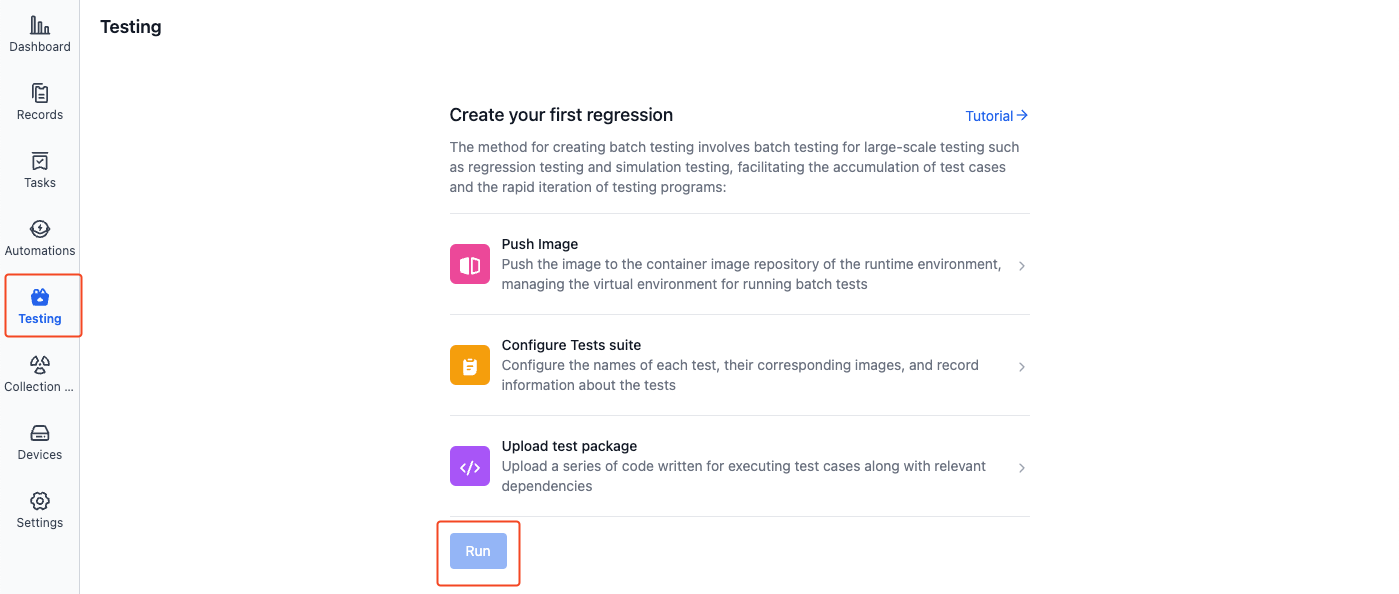
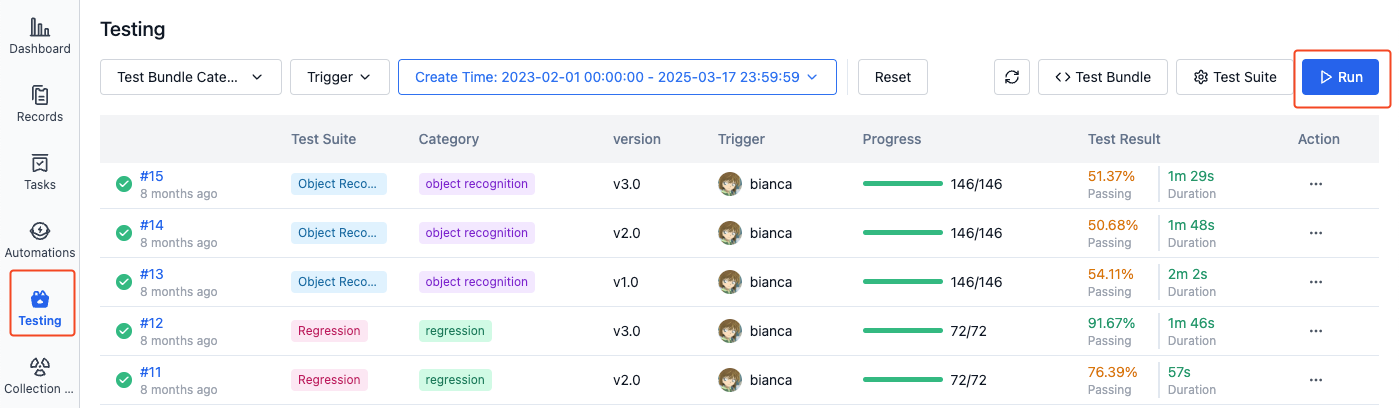
- In the project's left sidebar, select "Testing" and click the [Run Batch Test] button
-
First time running batch test
-
Subsequent runs of batch test
-
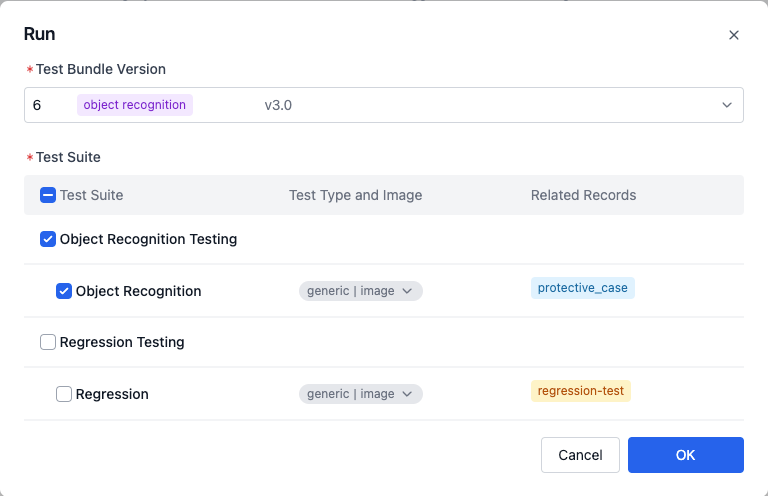
In the Run Batch Test dialog, select the test bundle and test suite, then click [Confirm] to run the batch test.
-
The system will create independent test tasks for each record associated with the test suites. For example, when a test suite is associated with 10 records, the system will create 10 sub-tasks, each using the selected test bundle and test suite configuration to test a single record.
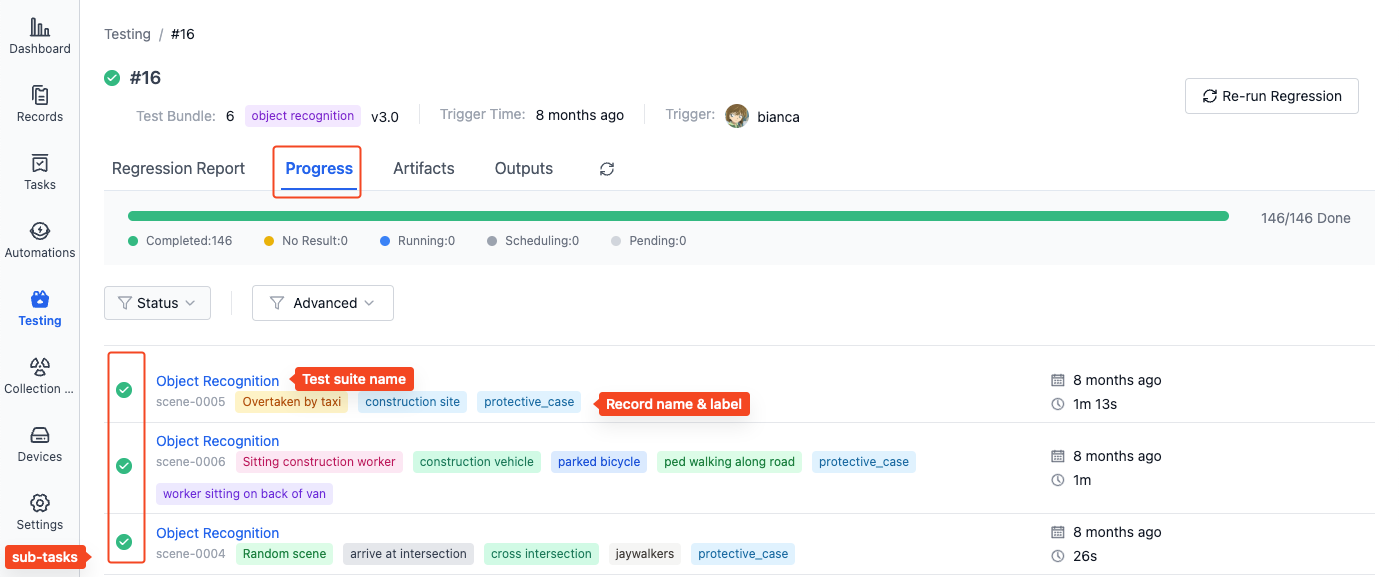
-
After completion, you can view the test results in the test list. See Managing Test Results for details.
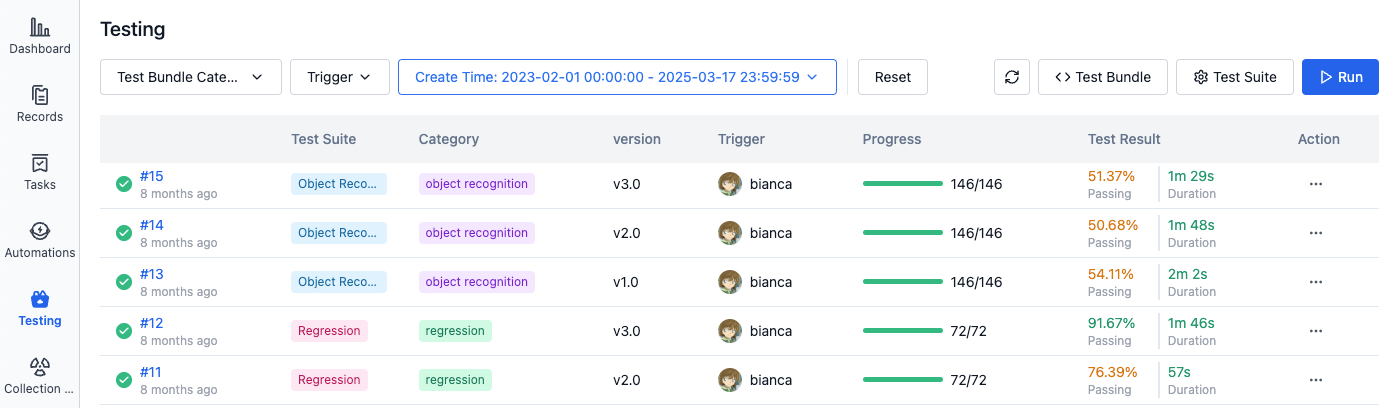
Automatic Triggering
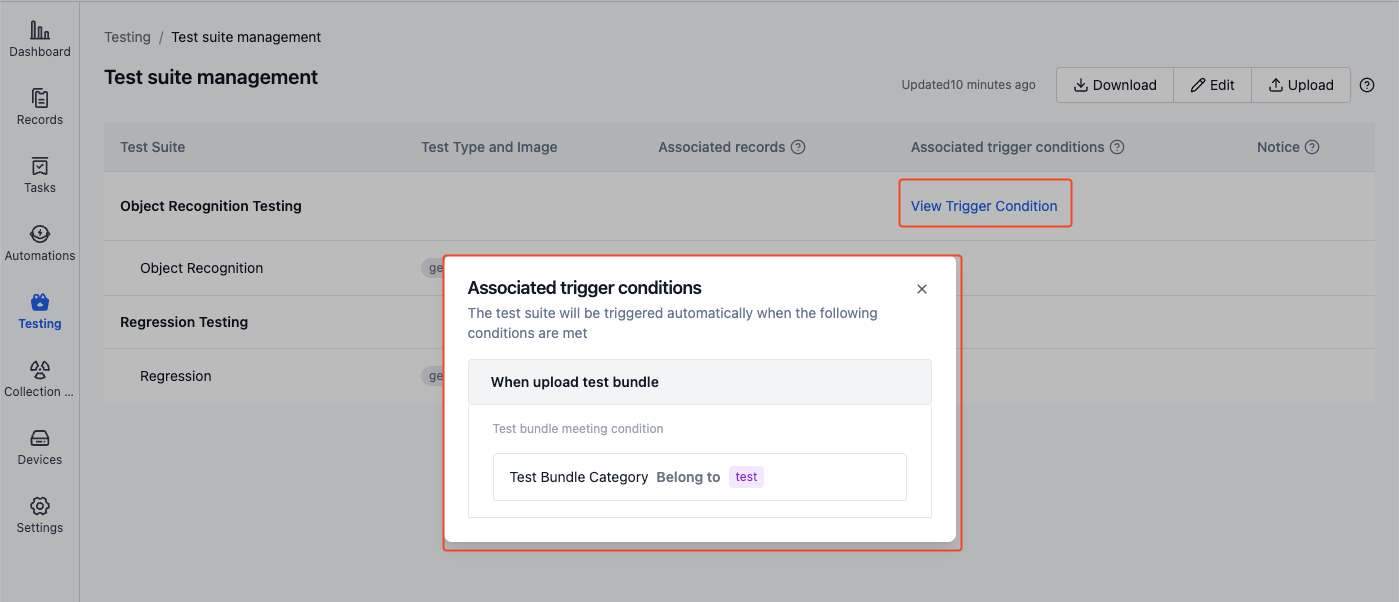
When the uploaded "Test Bundle" meets the preset trigger conditions in the test suite, the system will automatically execute the relevant test suites.
To view the automatic trigger conditions for a test suite:
-
Go to the "Testing - Test Suite Management" page and find the test suite with "Associated Trigger Conditions" indicator:
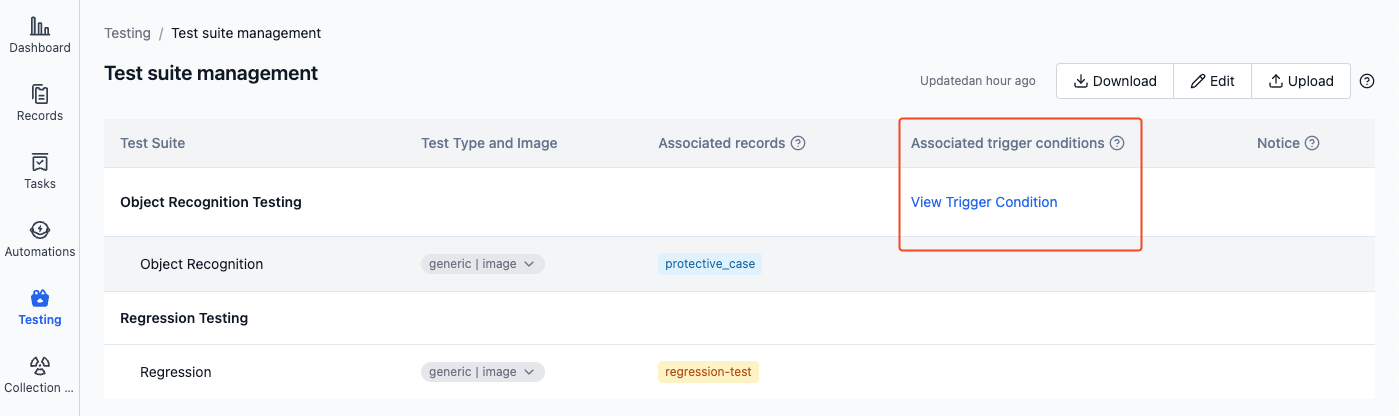
-
Click [View Trigger Conditions] to see the specific trigger rules for that test suite: