Extension Installation
For regular users, three installation methods are currently supported:
- Install from local extension files
- Install from remote URL
- Install from project resources
Install from Local Extension Files
You can install local extension files in the following two ways:
-
Drag and Drop: Simply drag and drop the extension file (
.coeformat) onto the visualization page to complete the installation. -
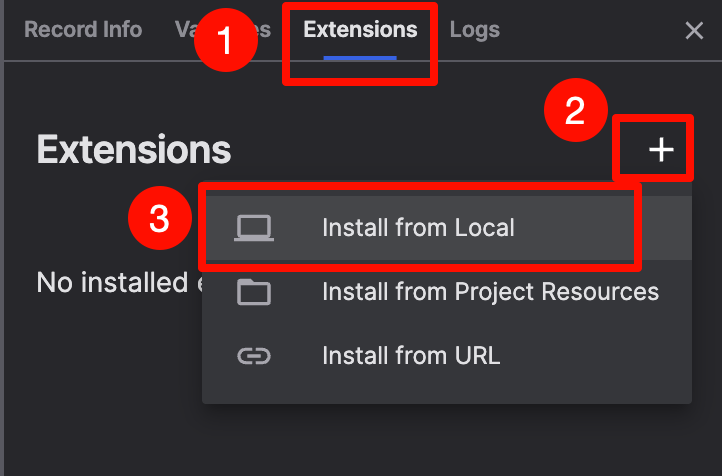
Menu Installation: Click the plus icon in the right-side plugin panel, select 【Install from Local】, and then choose the corresponding local extension file to install.
Install from Remote URL
When installing extensions from a remote URL, you need to provide the network address of the extension file.
Protocol Support
- Web Application: Only supports remote URLs with
httpsprotocol - Desktop Application: Supports remote URLs with both
httpandhttpsprotocols
Installation Steps
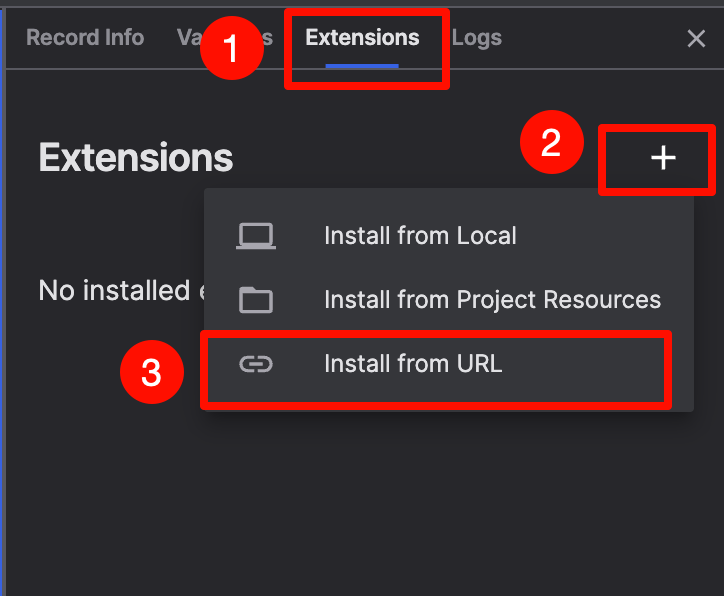
- Click the plus icon in the right-side plugin panel
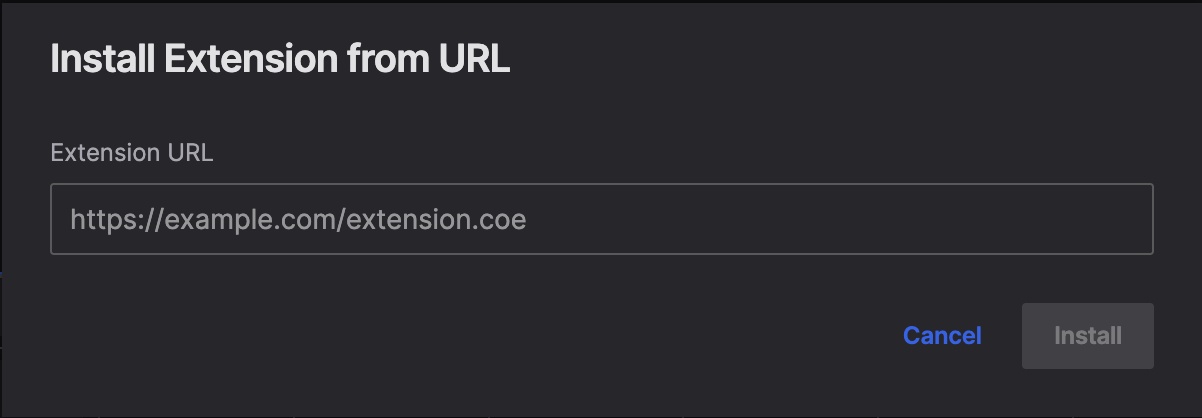
- Select 【Install from URL】
- Enter the URL address of the remote extension file in the popup window
- Click confirm to complete the installation
When using remote URL installation, please ensure that the file server has configured CORS (Cross-Origin Resource Sharing) to allow coScene platform to access the file.
Install from Project Resources
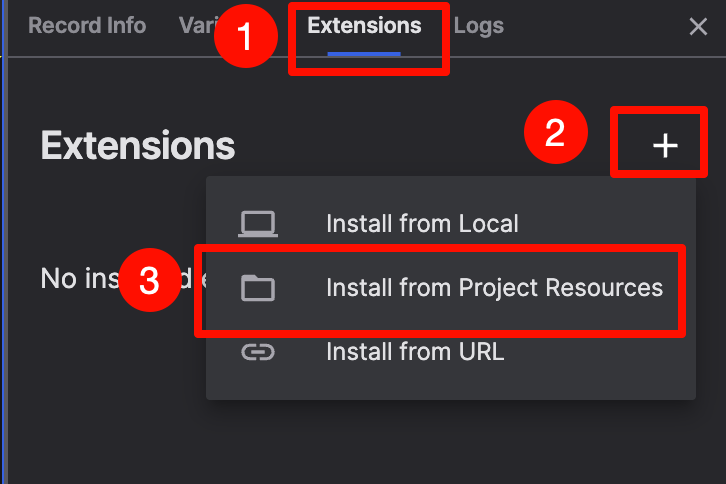
If the extension file has been uploaded to the project's common files, you can install it directly from project resources.
Installation Steps
- Click the plus icon in the right-side plugin panel
- Select 【Install from Project Resources】
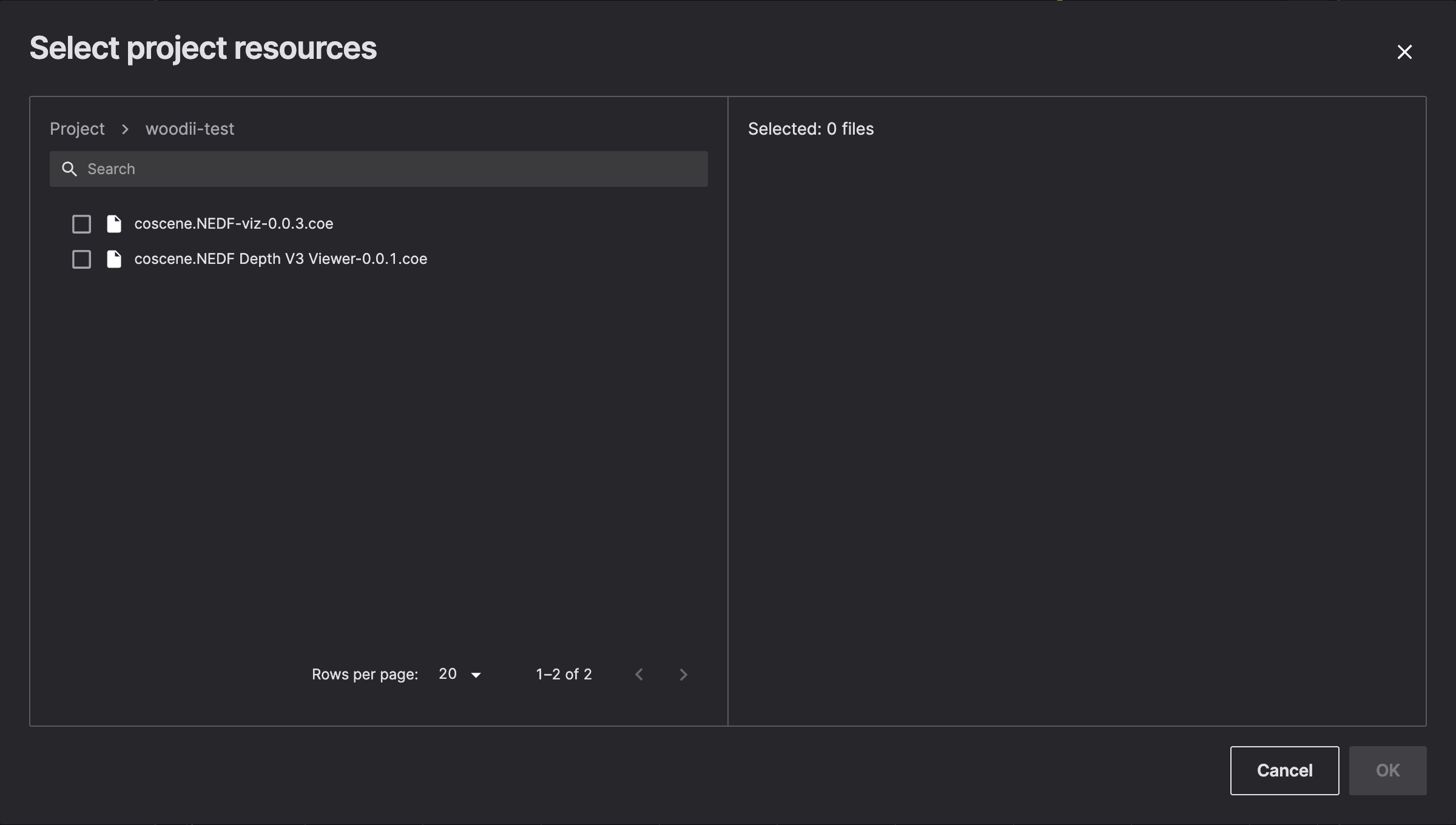
- Select the corresponding extension file from the file list
- Click confirm to complete the installation